WP-CLI: dùng để cài đặt wp, quản lý theme và plugin = command line. Việc này sẽ giúp cài đặt nhanh hơn trên server. Nếu không thích thì chỉ cần download wp về server = command line và cài đặt = giao diện như bình thường
- Vào folder cần cài đặt wp
- chạy lệnh bên dưới để download wp version mới nhất
wp core download --allow-root
Update WordPress command line:
wp core update --allow-root
Update all plugins:
wp plugin update --all
Update specific plugin:
wp plugin update woocommerce --version=1.x.x
Tham khảo thêm bài này:
Cách cài đặt wpcli trên Window 10
- Download wp-cli.phar manually and save it to a folder, for example
c:\wp-cli - Create new file with named wp.bat (please make sure that it’s wp.bat not wp.bat.txt) in
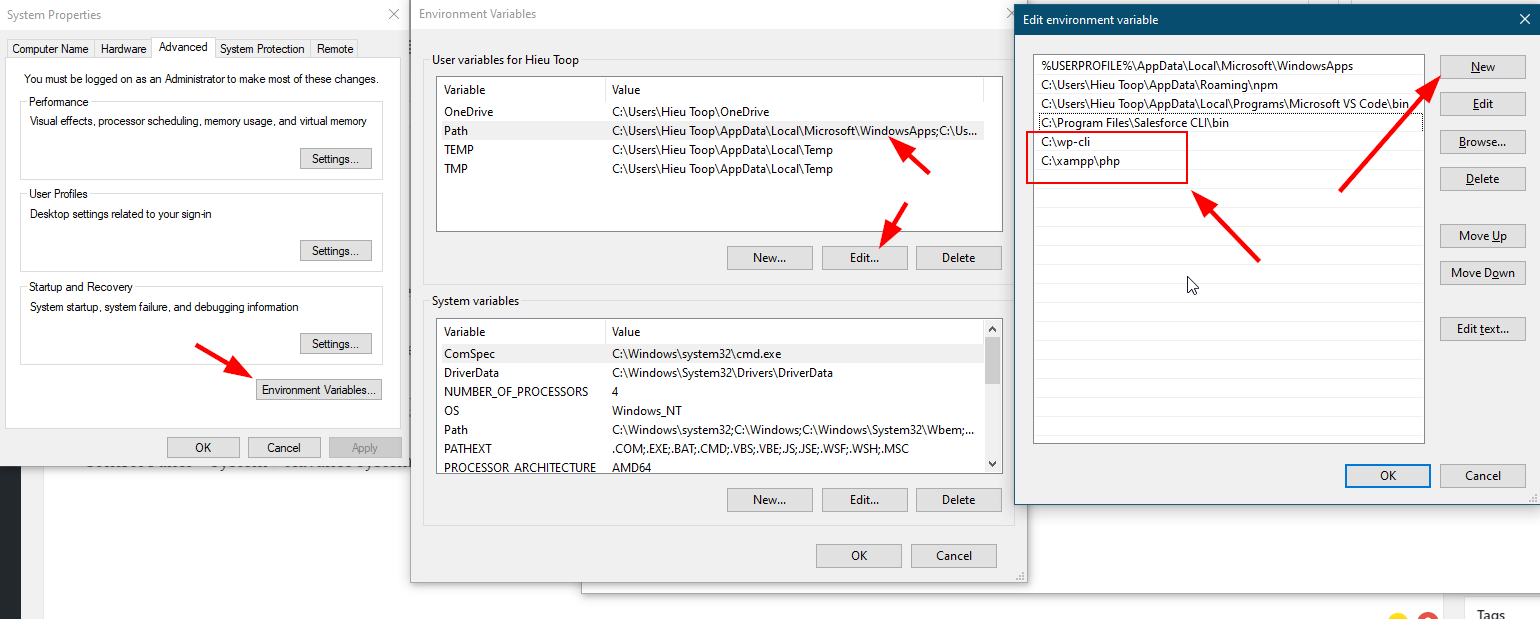
C:\wp-cli - Add variable(
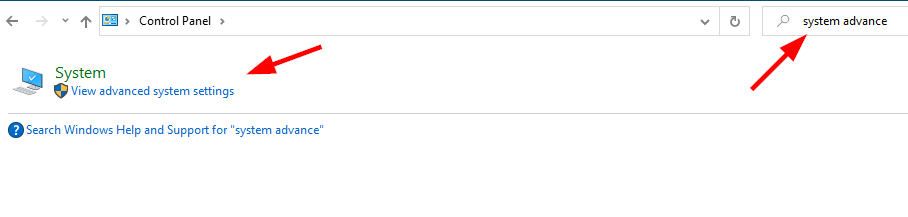
C:\xampp\php & C:\wp-cli) to your Patch to make sure php & wp command line running (go to Control Panel > System > Advance system setting) - Check
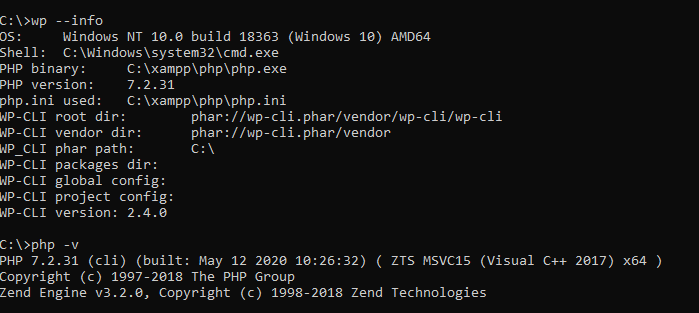
php wp-cli.phar --info or wp --info
Download toàn bô file phải tạo trong C:\wp-cli: >>> wp-cli
Để command line chạy được trong Git Bash:
- Tạo file wp (không có đuôi extension) trong folder
C:\wp-cli - Copy & paste đoạn code sau:
#!/usr/bin/env sh

dir=$(d=${0%[/\\]*}; cd "$d"; pwd)

# See if we are running in Cygwin by checking for cygpath program
if command -v 'cygpath' >/dev/null 2>&1; then
   # Cygwin paths start with /cygdrive/ which will break windows PHP,
   # so we need to translate the dir path to windows format. However
   # we could be using cygwin PHP which does not require this, so we
   # test if the path to PHP starts with /cygdrive/ rather than /usr/bin
   if [[ $(which php) == /cygdrive/* ]]; then
       dir=$(cygpath -m $dir);
   fi
fi

dir=$(echo $dir | sed 's/ /\ /g')
"${dir}/wp-cli.phar" "$@"
Các file trong folder C:\wp-cli

Thay đổi biến môi trường
Check wp version